Roblox Error Code 262 Kicking You Out Here’s How to Fix It on Every Device
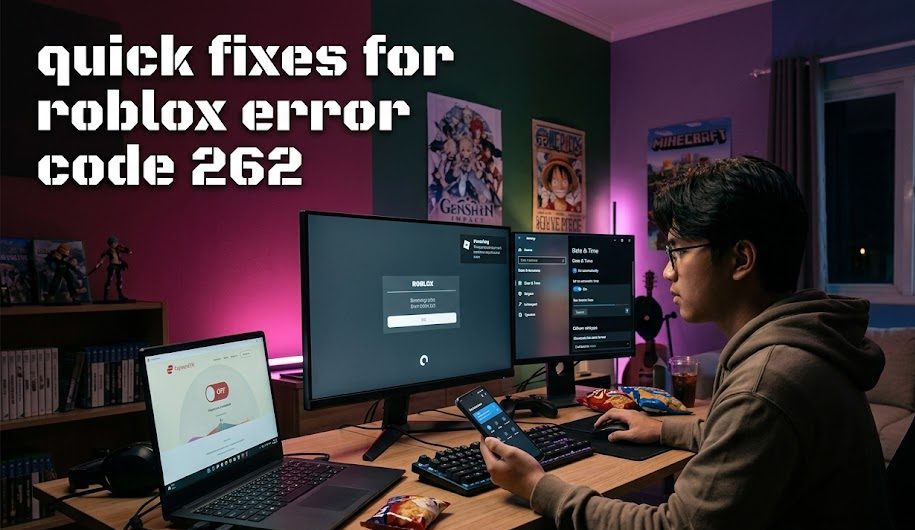
Roblox error code 262 appears with a message saying there was a problem sending data and asking you to reconnect. In normal language, the Roblox app and its game server stopped communicating properly. The interruption may come from Roblox, your internet connection, a damaged app installation, network restrictions, or a device that is not officially supported.
The good news is that most cases have a clear next step. You may only need to reconnect, restart the app, switch networks, or install an update. Reinstallation should come later, not five seconds after the error appears.
Use this guide in order. Test Roblox after every fix so you know which one actually worked. Changing ten settings at once may solve the problem, but it also turns the cause into a small unsolved mystery.
What Roblox Error Code 262 Means and Where the Problem Starts

The exact message says that Roblox had trouble sending data. Reports on the official Roblox Developer Forum show the wording “There was a problem sending data, please reconnect.” Roblox does not currently provide a separate public support article for code 262 in its main error-code directory, so the most sensible approach is to follow its official connection and device troubleshooting steps.
The cause usually falls into one of four groups:
- Roblox is experiencing a temporary service problem.
- Your internet connection dropped or became unstable.
- The Roblox app has outdated or damaged files.
- A firewall, VPN, extension, or unsupported operating system is blocking communication.
Start by noticing when the error happens.
| What Happens | Most Likely Area to Check |
| Every experience fails | Roblox status, network, or app |
| Only one experience fails | That experience or its server |
| Roblox works on mobile data | Home Wi-Fi or router |
| Roblox works on another device | The original device or app |
| Everyone is reporting problems | Roblox service status |
| It started after installing a VPN | VPN or network routing |
| It appears only on Linux | Unsupported operating system |
Roblox maintains a public status page for its website, mobile app, player, games, asset delivery, and game joining services. Check it before digging through device settings. If Roblox reports an incident, local repairs will not fix a platform-side outage.
How to Fix Error Code 262 in Roblox Without Reinstalling
These checks work across Windows, macOS, Android, and iPhone. Complete them before deleting anything.
1. Press Reconnect and Join a Different Server
Press Reconnect once. If the same server rejects the connection again, return to the experience page and join normally.
When only one experience fails:
- Open a different Roblox experience.
- Test a private and public server if available.
- Ask a friend whether the same experience loads.
- Wait a few minutes before trying again.
If other experiences work, your device and account are probably fine. The original experience may be updating, restarting servers, or dealing with its own technical problem.
2. Restart Roblox and the Device
Fully close Roblox instead of only returning to the home screen.
On a computer:
- Exit the Roblox Player.
- Check Task Manager or Activity Monitor.
- Close any remaining Roblox process.
- Restart the computer.
- Launch Roblox again.
On a phone, remove Roblox from the recent-apps screen and reopen it. Roblox officially recommends force-closing and restarting the device as early mobile troubleshooting steps.
3. Test a Different Internet Connection
Switch between Wi-Fi and mobile data. Computer users can try an Ethernet cable or a phone hotspot.
Also try:
- Pause large downloads.
- Stop cloud backups temporarily.
- Disconnect unnecessary devices.
- Restart the router.
- Move closer to the Wi-Fi router.
- Turn off a VPN or proxy.
- Avoid congested public Wi-Fi.
Roblox recommends at least a 4–8 Mbps internet connection for a single household and suggests testing a wired connection when wireless networking may be causing problems.
4. Check Date, Time, VPN, and Security Software
Set the device date and time to update automatically. Incorrect time settings can interfere with secure connections, and Roblox includes this check in its Android and iOS troubleshooting instructions.
Temporarily disconnect your VPN. If Roblox works afterward, change the VPN server or keep it disabled while playing.
Do not permanently switch off antivirus protection or the firewall. Instead, confirm whether Roblox Player is allowed to access the network. Roblox warns that security software may block applications by default and recommends adding Roblox as an allowed program when the firewall is responsible.
This is usually the fastest answer to how to fix Error code 262 Roblox players encounter across several experiences.
Windows Fixes When the Quick Checks Fail

Windows problems commonly come from corrupted Roblox files, browser interference, or a blocked network connection.
1. Update Windows and Roblox
Roblox officially supports 64-bit Windows 10 and Windows 11. Install pending Windows updates, restart the computer, and launch Roblox so the client can update.
Do not open an old installer saved months ago. Download a fresh copy from Roblox if an update repeatedly fails.
2. Clear Temporary Browser Files
If you start experiences through a browser, clear its temporary files and cookies. Roblox recommends this during uninstall and reinstall troubleshooting because damaged temporary data can interfere with normal operation.
Also disable browser extensions temporarily, especially:
- Ad blockers.
- Script blockers.
- Privacy extensions.
- Gaming overlays.
- Download managers.
Roblox notes that browser add-ons can stop an experience from loading correctly.
3. Allow Roblox Through the Firewall
Open Windows Security and check whether Roblox is allowed on private networks.
Do not download random “network repair” programs. You only need to confirm that:
- Roblox Player is allowed.
- The browser used to launch Roblox is allowed.
- Your router is not blocking gaming traffic.
- School or workplace filters are not restricting Roblox.
A managed school or office network may require an administrator. Sneaking through those restrictions is not really a technical fix. It is a meeting with the IT department waiting to happen.
4. Reinstall a Fresh Copy
Restart Windows before reinstalling. Roblox recommends trying a restart first, then reinstalling to replace missing or damaged files. Close other programs during installation.
Uninstall Roblox through Settings > Apps, restart the computer, and install a fresh copy from the official Roblox website or Microsoft Store.
Fixing Code 262 on a Mac
The process for Roblox error code 262 on Mac is similar to Windows, but macOS has a few extra files and launch locations worth checking.
1. Confirm That macOS Is Supported
Roblox supports macOS 10.13 High Sierra and later, including Apple Silicon Macs. The supported website browsers are Safari, Chrome, and Firefox.
Update macOS when possible. Very old systems may install the app but struggle with newer client updates.
2. Launch Roblox from Applications or the Dock
If clicking Play in Safari does nothing or repeatedly disconnects, open Roblox directly from the Applications folder or Dock.
You can also test Chrome or Firefox. Roblox specifically recommends trying another supported browser when Safari causes trouble.
3. Reset Roblox Logs and Preferences
Press Command + Space, enter the following path, and open it:
~/Library/Logs/Roblox/
Delete the files inside that folder, restart Roblox, and test again. Roblox lists this as an official Mac troubleshooting step.
If the problem continues, open:
~/Library/Preferences/
Remove Roblox preference files beginning with com.roblox, then reopen the app so the settings can be recreated. Do not delete unrelated preference files simply because they look lonely.
4. Reinstall Roblox
Delete Roblox from the Applications folder, empty the Trash, restart the Mac, and install it again through the official website.
If the error survives a clean installation and works on another network, record your Mac model, macOS version, exact message, and the steps that trigger it before contacting support.
How to Fix Roblox Code 262 on Mobile
The process for how to fix error code 262 Roblox mobile users encounter differs slightly between Android and iOS, but the order remains simple.
1. Force Close and Update the App
Close Roblox completely. Then open Google Play or the App Store and install any available update.
Roblox currently requires Android 8.0 or newer, while iPhone and iPad users need iOS or iPadOS 14 or newer. Android devices must also support OpenGL ES 3.0.
2. Clear Data on Android
Open:
Settings > Apps > Roblox > Storage
Start with Clear Cache if your phone provides the option. If the error continues, use Clear Data. You will need to sign in again afterward.
Roblox officially recommends force-stopping the app, rebooting, reinstalling, clearing Roblox data, and checking the date and time on Android.
3. Reinstall on iPhone or iPad
iOS does not offer the same app-cache button as Android. Force close Roblox, restart the device, and reinstall the app if the lighter steps fail.
Also check:
- Roblox can use mobile data.
- Low Data Mode is not interfering.
- The device has enough free storage.
- Date and time are automatic.
- The app is not being filtered by a managed network.
Roblox’s official iOS sequence includes force closing, rebooting, reinstalling, clearing Roblox cookies, and checking date and time.
4. Test Wi-Fi and Mobile Data Separately
If Roblox works on mobile data but not Wi-Fi, restart the router and review network restrictions. If it works on Wi-Fi but not mobile data, confirm that cellular access is enabled for Roblox.
Parents fixing the game for a child may also find it useful to understand why kids spend hours on Roblox before deciding how much time the newly repaired app should receive.
Fixing Roblox Code 262 on Linux Needs a Different Answer
Searching for a Roblox error code 262 Linux solution can lead to long guides involving compatibility layers, custom launchers, or Android containers. The important fact is simpler: Roblox officially states that Linux is not supported.
That means an unofficial setup may:
- Stop working after a Roblox update.
- Produce connection or anti-cheat errors.
- Fail without an official troubleshooting route.
- Create account-security risks if it uses an untrusted client.
- Behave differently from supported Windows or mobile versions.
The reliable options are:
- Use 64-bit Windows 10 or Windows 11.
- Play on a supported Mac.
- Use an Android or iOS device.
- Use a Chromebook with Google Play enabled.
- Avoid downloading unofficial executables that request account credentials.
There may be community workarounds, but they cannot honestly be presented as a guaranteed fix. Moving to a supported platform is the safest answer.
When Reinstalling or Contacting Support Makes Sense
Reinstall only after checking the service status, restarting, switching networks, updating the app, and reviewing security settings.
Contact Roblox Support when:
- The error appears on every network.
- Other accounts work on the same device.
- Your account fails on several supported devices.
- A fresh installation changes nothing.
- The error began after a specific Roblox update.
- You receive another message alongside code 262.
Include:
- Roblox username.
- Device model.
- Operating-system version.
- Exact error message.
- Screenshot.
- Experience name.
- Approximate time of the error.
- Steps already attempted.
Once Roblox error code 262 disappears, avoid reinstalling network tools or changing router settings further. The goal is to restore the connection, not accidentally turn the home Wi-Fi into a weekend engineering project.
Q&A
Is Error Code 262 a Ban?
No. The message points to a problem sending data, not an account moderation notice.
Test another experience and check Roblox’s status page. A ban or experience restriction normally displays different wording.
Can One Roblox Experience Cause the Error?
Yes. If every other experience loads normally, the problem may involve that particular experience or server.
Join a different server, wait for an update to finish, or contact the experience creator if the issue continues only there.
Will Reinstalling Roblox Always Fix It?
No. Reinstallation can replace damaged app files, but it cannot repair a Roblox outage, unstable Wi-Fi, blocked school network, or unsupported Linux installation.
That is why reinstalling belongs near the end of the checklist rather than at the beginning.



Leave a Reply